Publisher disclosure & methodology: SplitForge publishes this comparison. Manual Excel copy-paste and Power Query behaviour described here reflects internal testing and documented community experiences (r/excel, r/dataengineering, Stack Overflow). Microsoft specifications are linked in the Sources section. SplitForge throughput figures are projected from an in-memory per-row baseline, not a timed benchmark. Results vary by hardware, browser, and file complexity. Editorial standards
Who Is This Comparison For?
The workbook consolidation pain point is extremely common. Here is who hits it most.
- Consolidating GL exports from multiple entities or departments
- Merging monthly budget vs actuals from regional workbooks
- Combining transaction exports for month-end reconciliation
- Consolidating weekly performance reports from 10+ regional teams
- Merging vendor data with internal tracking sheets before QA
- Combining fulfillment exports from multiple warehouse systems
- Merging headcount exports from multiple HR systems by quarter
- Combining department-level timesheets into a master payroll sheet
- Consolidating survey exports from multiple rounds into one dataset
How SplitForge Excel Sheet Merger Works
Why it handles mismatched headers across multiple Excel workbooks — and why that requires a different architecture than copy-paste.
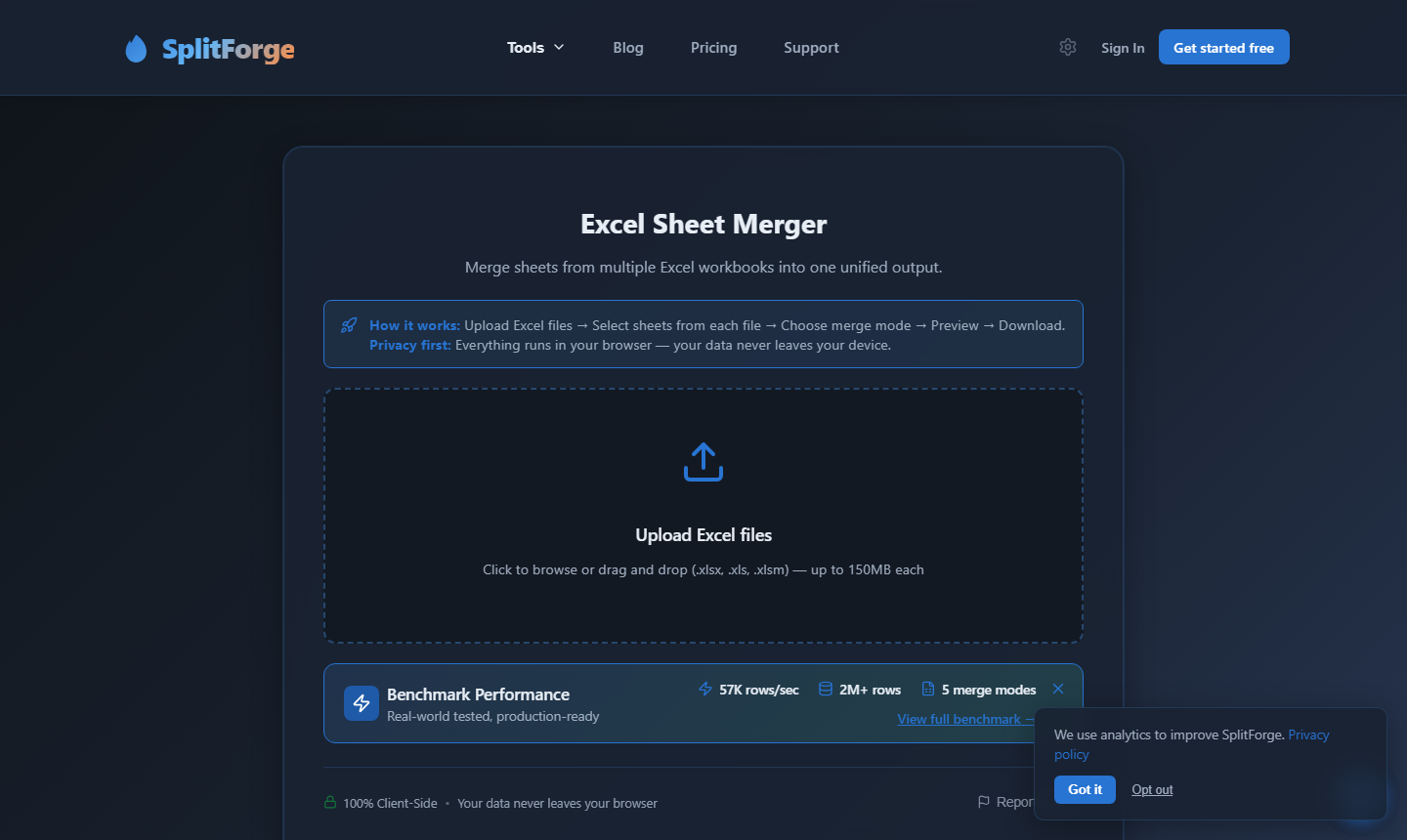
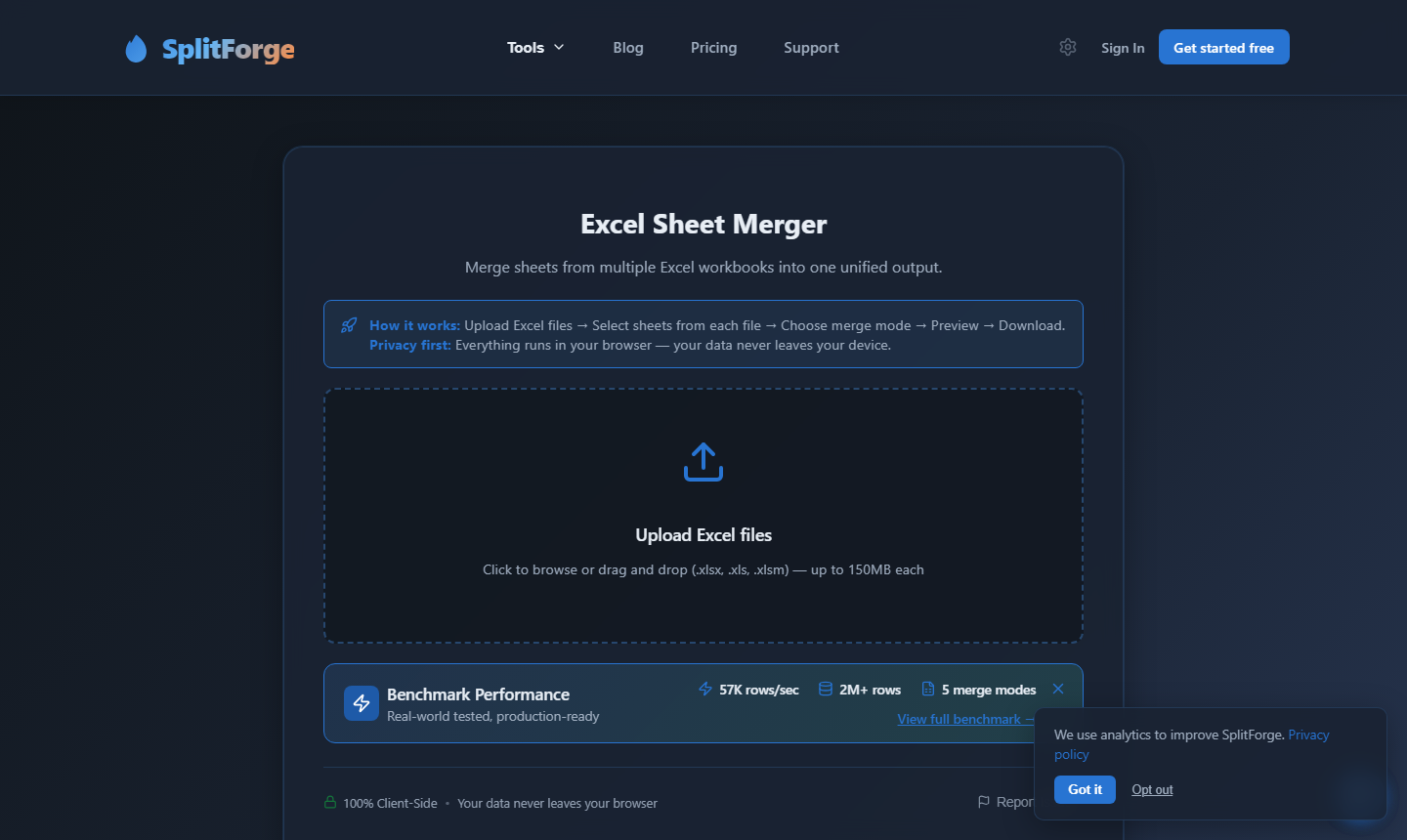
Each uploaded .xlsx file is read via the browser File API and parsed using SheetJS in a dedicated Web Worker. SheetJS extracts the raw cell data from every sheet independently — formulas are resolved to their computed values, dates are normalised, and special characters are preserved exactly as stored in the workbook. No server contact required.
After parsing each sheet's header row, Sheet Merger builds a case-insensitive union of all column names across all workbooks. "Revenue", "revenue", and "REVENUE" map to the same output column. Missing columns get blank values. Extra columns are added to the union. Each row is tagged with its source workbook and sheet name automatically. No manual realignment required.
Rows are processed according to your selected merge mode — stack rows, align columns, join on key, consolidate with aggregation, or combine sheet-by-sheet. The final output is assembled entirely in browser memory and handed directly to the browser download API as XLSX, CSV, TSV, or JSON. No file contents are transmitted to SplitForge servers at any point in the process.
Why this matters for column alignment: Manual copy-paste pastes rows in column order, not by header name. If Workbook B exports "Region, Revenue, Name" and Workbook A exports "Name, Revenue, Region", pasting Workbook B below Workbook A silently puts Region data in the Name column and Name data in the Region column. Sheet Merger routes every value to its named column regardless of the order it appears in the source workbook. You can merge 10 workbooks with completely different column orders in a single pass.
5 Excel workbooks with mismatched column headers: manual copy/paste vs SplitForge Sheet Merger
If You Think Like This...
This is not about features. It is about which approach matches your workflow's actual requirements.
Use manual copy/paste or Power Query if:
- You merge 2 workbooks once every few months with identical columns
- You need the output to contain live Excel formulas
- Your merge requires conditional filtering or transforming data
- You need the result as a formatted .xlsx workbook with charts or pivot tables
- Your files stay consistently under 200K rows and column headers never change
Use SplitForge Sheet Merger if:
- You merge 3+ workbooks regularly and column headers drift between exports
- Your workbooks come from different teams with different column order conventions
- You process 100K+ rows and Excel slows, crashes, or hits its 1M row ceiling
- Privacy matters — your data contains PII or financial records that cannot be uploaded
- You need source workbook/sheet tracking and deduplication without manual steps
- You want VLOOKUP-style joins or consolidation without writing formulas
The real dividing line is repetition and column consistency. A one-off merge of two tidy workbooks is perfectly suited to manual copy-paste. The moment you have three or more workbooks, headers that drift between exports, or this is a recurring weekly task — the manual approach trades your time for process control that adds no value.
Time Savings Calculator
Estimate how many hours manual workbook merging costs your team each month
Manual estimate: 12 min/workbook (open, copy sheets, paste, fix column order, handle encoding, verify count). Adjust the sliders to match your actual experience — your numbers may differ. SplitForge estimate is based on internal modeling. Results vary by hardware, browser, and file complexity.
Performance at Scale
Internal modeling, 2026 — projected from an in-memory per-row rate on a typical desktop browser. Actual results vary with hardware, browser, and file complexity.
| Scenario | SplitForge Sheet Merger | Manual Copy/Paste | Verdict |
|---|---|---|---|
| 2 workbooks × 10K rows (identical headers) | ~1.5 sec | ~2 min | Manual fine at this scale |
| 5 workbooks × 50K rows (mismatched headers) | ~8 sec | 15–25 min + column fixing | Sheet Merger 100x+ faster |
| 10 workbooks × 100K rows (mixed column orders) | ~20 sec | 45–90 min (column realignment needed) | Manual workflows unstable at this scale |
| 5 workbooks × 500K total rows | ~40 sec | Hours; Excel hits 1M row limit | Manual approach becomes impractical at this scale |
| VLOOKUP join — 2 workbooks × 200K rows | ~15 sec | XLOOKUP formula writing — 20–40 min | Purpose-built tool required |
Manual time estimates represent a typical analyst experience with non-identical headers: open each workbook, copy each sheet, paste, identify misaligned columns, manually reorder, verify row count. Results vary by file complexity and header consistency. SplitForge figures are projected from an in-memory per-row baseline, not a timed benchmark. Results vary by hardware, browser, and file complexity. Full benchmark methodology and test dataset specifications →
Processing time by workbook batch size — hover for values (manual estimate assumes tidy headers; add 50–200% for column mismatches)
Chart capped at 100 seconds for readability. Manual 60-min scenario (10×100K) far exceeds chart scale. VLOOKUP join and 5×500K scenarios are typically impractical for manual workflows. Results vary by hardware, browser, and file complexity.
Full Feature Comparison
SplitForge Excel Sheet Merger vs Manual Excel Copy-Paste / Power Query — March 2026
| Feature | SplitForge Sheet Merger | Excel Copy-Paste / Power Query |
|---|---|---|
| Workbooks merged per operation | Up to 10 workbooks simultaneously — drop and merge in one pass | One at a time; each requires manual open/copy/paste sequence |
| Column header alignment | Auto-detected case-insensitive matching across all workbooks | Manual — you must find and realign every mismatched header yourself |
| Processing speed | 5 workbooks (~50K rows each, ~250K rows total) merged in seconds; Excel files up to ~14 MB each, ~20 MB total | Human-limited — no algorithmic speed |
| Row count ceiling | 2M+ rows tested; constrained only by browser memory, not an app limit | 1,048,576 rows per sheet — larger merges require Power Query + chunking |
| Source file tracking | Automatic _Source_File and _Source_Sheet columns added to every row | Manual — add a column yourself before each copy-paste |
| Duplicate row removal | Built-in hash-based deduplication across all merged workbooks | Requires a separate Remove Duplicates step after all workbooks are merged |
| VLOOKUP-style joining | Built-in VLOOKUP mode — key column matching without writing formulas | Requires writing VLOOKUP/XLOOKUP formulas manually for each merge |
| Consolidate (SUM/AVG across files) | Consolidate mode with SUM, AVG, COUNT, MIN, MAX summary functions | 3D formulas or Power Query — significant learning curve and setup time |
| Data upload required | No — 100% browser-based, workbooks never leave your device | No — local processing (if not cloud-synced to OneDrive) |
| Extra/missing columns between workbooks | Fills missing cells with blanks, preserves all columns from all workbooks | Data lands in wrong columns if headers not manually realigned first |
| Power Query required | No — drag, drop, select merge mode, download | Yes for batch automation; requires M formula syntax knowledge |
| Output formats | XLSX, CSV, TSV, JSON — download immediately | XLSX or CSV via Save As (manual step per format) |
| Installation required | None — runs in any modern browser on any OS | Requires Microsoft 365 licence ($6.99–12.50/month) |
| Formula preservation | Exports data values — live Excel formulas are not carried into output | Formulas preserved if you copy entire rows carefully (XLSX only) |
The Column Mismatch Problem
This is where manual copy-paste silently corrupts your data — and most people don't notice until downstream.
You have five regional performance workbooks — all exported from the same reporting template. But each regional manager customised their column order. Workbook A exports "Name, Revenue, Region". Workbook B exports "Region, Revenue, Name". Paste Workbook B below Workbook A and Region data ends up in the Name column without a single error message.
Data in wrong columns. No error raised. Silent corruption propagates to downstream reports.
Headers matched by name. Every value lands in the correct column regardless of source order.
How to Merge Excel Files Manually (The Complete Walkthrough)
Both manual approaches — and exactly where each one breaks down at scale.
There are two manual approaches most teams rely on. Here is the complete workflow for each, including the specific failure points you will encounter with more than two workbooks.
Method 1: Direct copy/paste (2–3 workbooks, identical structure)
- Open Workbook A in Excel. Select all data rows below the header (click row 2, then Ctrl+Shift+End).
- Copy (Ctrl+C).
- Open Workbook B. Navigate to the first empty row below Workbook B's data.
- Paste (Ctrl+V). Verify that columns landed correctly.
- Repeat for each additional workbook.
- Save the merged result (File → Save As → XLSX or CSV).
Where this breaks: Any difference in column order between workbooks silently puts data in wrong columns — no error message. Row count exceeding 1,048,576 means Excel silently truncates the excess or crashes. Duplicate rows require a separate Remove Duplicates step. Source tracking requires manually adding a column before each paste.
Method 2: Excel Power Query (batch merging, 3+ workbooks)
- Place all workbooks in a single folder.
- In Excel: Data → Get Data → From File → From Folder.
- Navigate to the folder. Click "Combine & Transform Data."
- Select the sheet to extract from each workbook in the preview (manual step if sheets differ).
- Power Query builds an M-formula query. Validate column mappings in the Query Editor.
- Click "Close & Load." Excel loads the merged result as a connected table.
- Save as XLSX or export to CSV (loses Power Query connection on CSV export).
Where this breaks: Requires Power Query knowledge and M formula syntax for non-trivial column mismatches. Significant configuration overhead if workbooks have different sheet names or inconsistent headers — you may need to edit the query M code manually. Slow refresh above 500K rows. Requires Excel 2016+ or Microsoft 365. Loading to a worksheet is still subject to the 1,048,576 row sheet limit; loading to the Data Model bypasses this but requires Power Pivot and adds further complexity.
When these methods stop working: Both approaches share a fundamental constraint — they process workbooks sequentially and rely on manual column alignment verification. The moment your workbooks have different column orders, different sheet structures, or your combined row count approaches Excel's ceiling, the manual methods require remediation work that takes longer than the merge itself. SplitForge automates those remediation steps before the merge runs, rather than leaving them as a manual cleanup problem after.
When SplitForge Is NOT the Right Tool
Honest limitations — because the wrong tool for the job costs more time than the tool saved.
Ready to Merge Without the Copy-Paste?
Drop your workbooks in. Sheet Merger aligns headers, applies your chosen merge mode, and downloads a clean merged file — all in your browser, nothing uploaded.
Why "No Upload" Matters for Excel Merging
The workbooks you merge are rarely publicly safe data.
Finance consolidations, HR headcount exports, and operations reports regularly contain sensitive data — revenue figures, employee records, compensation data, customer account numbers. Uploading any of these to a cloud-based merging tool creates data custody risk even with encryption in transit, and can create compliance exposure under GDPR or HIPAA depending on your sector and the data involved.
SplitForge processes merges entirely in your browser using SheetJS and Web Workers. All workbooks are read locally via the browser File API and never transmitted to SplitForge servers. You can verify this by opening DevTools (F12 → Network tab) while running a merge — you will observe that no file contents are sent from your device during processing.
Note on compliance language: SplitForge is designed to support HIPAA and GDPR-sensitive workflows through its client-side architecture. We do not hold HIPAA BAA agreements. "Designed to support" is intentional — compliance depends on your full workflow, not just the processing tool. Consult your compliance team for complete assessment.
Frequently Asked Questions
Why does manual Excel copy-paste break when merging multiple workbooks?
What is the difference between Sheet Merger and Excel Power Query?
Does SplitForge upload my Excel files to a server?
How does auto-header alignment work?
What is the maximum row count or file size?
What are the five merge modes and when do I use each?
When should I use Excel Power Query instead of Sheet Merger?

John built SplitForge after repeatedly hitting the limits of manual workbook consolidation in prior operations and data roles. SplitForge launched November 2025 and now serves 27 tools built on a client-side streaming architecture. Performance figures on this page are projected from an in-memory baseline, not timed benchmarks.
Sources & Verification
All competitor specifications derived from official documentation. Verified March 2026.
Related guides
More Tool Comparisons
We have published head-to-head comparisons for CSV merging, VLOOKUP/Join, data masking, and Excel alternatives across the full SplitForge tool suite.
Merge Your Excel Workbooks in Seconds
Drop up to 10 Excel workbooks. Sheet Merger aligns headers automatically, applies your chosen merge mode, tracks source files, and downloads a clean merged file — all in your browser, nothing uploaded.