Publisher disclosure & methodology: SplitForge publishes this comparison. Manual Excel splitting behaviour described here reflects internal testing (a dev machine, Chrome, Windows 11) and documented community experiences (r/excel, Stack Overflow, Microsoft support forums). Microsoft specifications are linked in the Sources section. Test dataset: standard business data (text, numbers, dates, currency formats; no charts or heavy styles), sheets ~500KB–15MB. Results vary by hardware, browser, file complexity, and number of formatting rules. Where SplitForge falls short, we say so plainly — see the Limitations section.
Who Is This Comparison For?
The "file too large for email" problem hits specific teams at predictable intervals.
- Month-end GL export too large to email to department heads
- Annual budget workbook with 20 department sheets to distribute individually
- Quarterly P&L workbook hitting 80MB+ after three years of data accumulation
- Weekly performance workbook with one sheet per region — need individual sends
- Consolidated supplier data too large for procurement team email limits
- Large inventory export needing to be chunked into importable row-count batches
- Annual headcount workbook with one sheet per department that must be distributed separately
- Payroll export too large for external auditor email attachment limits
- Compliance dataset requiring row-based splits for upload to a system with a 100K row cap
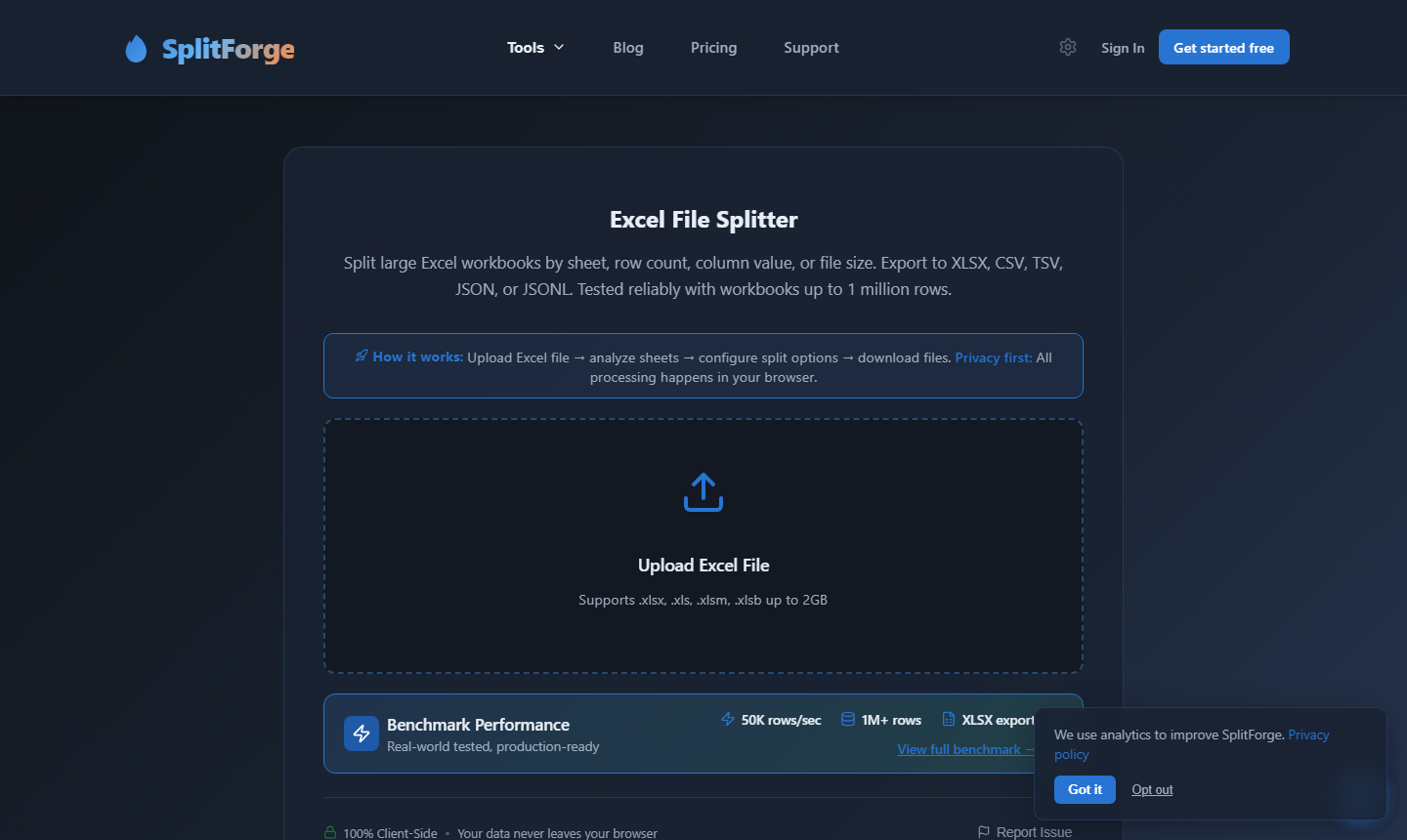
How SplitForge Excel Splitter Works
Why it handles an entire 20-sheet workbook faster than Excel handles one sheet — and why that requires a different architecture.
The uploaded .xlsx file is read via the browser File API and parsed using SheetJS in a dedicated Web Worker. All sheets are extracted simultaneously — cell values, number formats, column widths, and most conditional formatting rules are captured for every sheet in one pass. Formulas resolve to their computed cached values as stored in the file. A brief note on this: XLSX files store the last-computed result alongside each formula. If the source workbook was never opened in Excel after data changed (i.e., the cache is stale), Splitter exports the stale cached value — not a live recalculation. For workbooks freshly saved from Excel, cached values match what you see on screen. No server contact is required at any point.
Splitter applies the selected split mode to the entire workbook at once: by sheet (each tab becomes a standalone file), by row count (data chunked into N-row files with headers), or by column value (rows grouped into files by the unique values in a selected column). Headers are automatically carried to the top of every output file regardless of split mode — no manual header copying required.
All split output files are packaged into a single ZIP archive using fflate running entirely in browser memory. The ZIP is handed directly to the browser download API — one click, all files. No manual Save As loop. No Windows Explorer zip. No workbook payload is transmitted to SplitForge servers at any point in the process.
Why ZIP matters for distribution: The manual Move or Copy approach produces files one at a time with no packaging step. Attaching 12 individual sheet files to an email requires selecting them all manually, and most email clients treat 12 attachments as a usability problem. SplitForge packages everything into a single ZIP — one attachment, one download for your recipient, containing all the split files they need. Unzipping takes seconds on any modern OS.
10-sheet workbook: manual Move or Copy Sheet workflow vs SplitForge Excel Splitter
If You Think Like This...
This is not about features. It is about which approach matches your actual workflow requirements.
Use manual Move or Copy Sheet if:
- You are splitting 2–3 sheets once per quarter and already have Excel open
- Your sheets contain charts or pivot tables that must remain interactive in the output
- Your workbook has active cross-sheet formula references that need to stay live
- You need to split a macro-enabled workbook where VBA must run in the output
- You need non-standard subsets — e.g., sheets 1, 3, 7 into one file
Use SplitForge Excel Splitter if:
- Your workbook has 5+ sheets and you need them all split every week or month
- Your Excel file is too large for email and you need each sheet under a size threshold
- You need a row-based split — e.g., 500K rows into 100K-row chunks for system import
- You need to split by column value — one file per region, department, or category
- Privacy matters — your workbook contains financial records or PII that cannot be uploaded
- You want one ZIP download with all files rather than Save As repeated for each sheet
The real dividing line is sheet count and frequency. Splitting one sheet, once, is a few minutes of clicking and you already know the workflow. The moment you are splitting 10 sheets every week, or hitting email limits on a 60MB workbook, the manual approach is trading your time for a process that adds zero analytical value.
Time Savings Calculator
Estimate how many hours the manual Move-or-Copy approach costs your team each month
Manual estimate uses 4 min/sheet as the midpoint of a typical 3–5 min analyst workflow (Move or Copy dialog ~30s + Save As ~45s + filename + folder navigation + close + context switch). Adjust sliders to match your actual experience — some workflows run faster, some slower. SplitForge estimate based on internal testing: 10-sheet workbook, ~500KB–5MB per sheet, standard data (text/numbers/dates, minimal styles), a dev machine (Chrome, Windows 11). Results vary by hardware, browser, file complexity, and number of conditional formatting rules.
Performance at Scale
Internal testing, 2026 — a dev machine (Chrome, Windows 11). Test dataset: standard business data (text, numbers, dates, currency formats; minimal complex styles; no charts or pivot tables). Sheet sizes: ~500KB–15MB per sheet depending on scenario. Results vary by hardware, browser, file complexity, and number of conditional formatting rules.
| Scenario | SplitForge Excel Splitter | Manual Move or Copy Sheet | Verdict |
|---|---|---|---|
| 2-sheet workbook, 5MB (identical structure) | ~1.5 sec | ~6–10 min (typical) | Manual acceptable at this scale |
| 5-sheet workbook, 25MB (mixed content) | ~4 sec | ~15–25 min + ZIP manually | Splitter significantly faster with ZIP included |
| 10-sheet workbook, 50MB (monthly report) | ~6 sec | ~30–50 min + ZIP | Manual impractical for recurring cadence |
| 20-sheet workbook, 100MB (annual workbook) | ~16 sec | ~60–100 min + ZIP | Manual workflow operationally inefficient at this scale |
| Row split — 500K rows → 100K chunks (5 files) | ~12 sec | Not natively supported — VBA required | Manual approach requires scripting |
Manual time estimates represent typical analyst experience (Move or Copy dialog + Save As + naming + close; 3–5 min/sheet range, 4 min midpoint used). ZIP step not included — add 2–5 minutes for Windows Explorer or macOS Finder zipping. SplitForge test dataset: standard business data (text, numbers, dates, currency formats; no charts, pivot tables, or heavy styles). Sheet sizes: ~500KB–15MB depending on scenario. Measured on a dev machine (Chrome, Windows 11). Results vary by hardware, browser, file complexity, and number of conditional formatting rules. Full benchmark methodology and test dataset specifications →
Processing time by workbook size — hover for values (manual estimate excludes ZIP step; add 2–5 min for workbooks with 5+ sheets)
Chart capped at 100 seconds for readability. Manual 80-min scenario (20 sheets) far exceeds chart scale. Row split scenario manual bar shown empty — not natively supported without VBA. Results vary by hardware, browser, and file complexity.
Full Feature Comparison
SplitForge Excel Splitter vs Manual Excel Move or Copy Sheet — March 2026
| Feature | SplitForge Excel Splitter | Manual Excel Move or Copy |
|---|---|---|
| Sheets split per operation | All sheets split simultaneously in a single pass — drop workbook, click Split, download ZIP | One sheet at a time via Move or Copy → New Book; each sheet requires its own sequence |
| Processing speed | ~6 sec for a 10-sheet workbook in this test configuration (dev machine, Chrome); results vary | Human-limited — typically 3–5 minutes per sheet for Move or Copy → Save As workflow |
| Batch ZIP export | All split files packaged into a single ZIP download automatically | No ZIP — each sheet saved individually, then manually zipped via Windows Explorer or macOS Finder |
| Cell formatting preserved | Most cell formatting preserved: colors, borders, number formats, column widths, and most conditional formatting rules. Some advanced Excel formatting (e.g., complex icon sets, data bars with custom midpoints) may not carry over — SheetJS fidelity depends on format complexity. | Preserved when using Move or Copy to a new XLSX workbook (Copy is safer than Move for this) |
| Charts and images | Charts and embedded images are not carried to output files (flat data export) | Charts and images preserved when using Move or Copy within Excel |
| Row-based splitting | Split by row count — e.g., every 100K rows becomes a separate file, with headers on each chunk | Not natively supported; requires VBA macro or manual cut/paste into new workbooks |
| Email-ready file sizes | Split by row threshold until each file stays under your attachment limit target | No size control — Save As gives you one file of whatever size that sheet contains |
| Headers in every row-split chunk | Header row automatically included at the top of every output file in row-count and column-value split modes | Move or Copy preserves the full sheet including headers; the gap arises with manual row-splitting — if you cut rows into new workbooks by hand, you must manually copy the header row to each one |
| Output formats | XLSX and CSV output available per file, all packaged in ZIP | XLSX via Move or Copy; CSV via File → Save As (manual step, loses formatting) |
| Data upload required | No — 100% browser-based, workbook never leaves your device | No — local processing (unless workbook is cloud-synced to OneDrive) |
| Formula preservation | Exports computed cell values — live cross-sheet formula references are not carried over | Formulas preserved in XLSX; cross-sheet references may break after Move or Copy to new workbook |
| Split by column value | Split rows into separate files based on a column value — e.g., one file per Region or Department | Not natively supported; requires filtering rows manually or writing a VBA macro |
| Installation required | None — runs in any modern browser on any OS | Requires Microsoft 365 licence ($6.99–12.50/month) or Excel standalone |
| Password-protected workbooks | Cannot open password-protected files — password must be removed before upload | Can open with password in Excel desktop app |
The Email Attachment Limit Problem
Why a file that opens fine in Excel still can't be emailed — and what the actual limits are.
Excel workbooks with multiple formatted sheets, conditional formatting, and embedded data accumulate file size faster than most people expect. A 12-sheet monthly report that started at 5MB three years ago is now 65MB. Your IT team's email limit is 20MB. The workbook opens in Excel instantly — but it bounces every time you try to send it.
Sending limit per email. Files above this require Google Drive link instead of direct attachment.
Default sending limit for most Microsoft 365 plans. IT administrators can adjust per-mailbox.
Varies by IT policy. Many enterprise configurations cap incoming attachments at 10MB even if outgoing allows more.
The split-and-send workflow: Split the workbook into individual sheet files — each sheet typically drops to 2–10MB. Send each recipient only the sheet relevant to them. Finance gets the Finance sheet. Operations gets the Operations sheet. Nobody gets a 65MB attachment they can't open. SplitForge splits the whole workbook in one step and delivers a ZIP of all files — you then forward individual files from the ZIP as needed.
How to Split Excel Files Manually (The Complete Walkthrough)
Both manual approaches — and exactly where each one breaks down at scale.
There are two manual approaches for splitting workbooks: sheet-by-sheet via Move or Copy, and row-based splitting via VBA macro. Here is the complete workflow for each, including where each one fails.
Method 1: Move or Copy Sheet (sheet-by-sheet)
- Open the workbook in Excel.
- Right-click the first sheet tab you want to extract. Select Move or Copy.
- In the dialog, set "To book" to "(new book)" and check "Create a copy." Click OK.
- A new workbook opens with only that sheet. File → Save As → choose location and filename → Save.
- Close the new workbook.
- Return to the original workbook. Repeat steps 2–5 for every remaining sheet.
- Open Windows Explorer or macOS Finder. Select all split files. Right-click → Compress (or Send to → Compressed folder) to create a ZIP for emailing.
Where this breaks: Typically 3–5 minutes per sheet means a 12-sheet workbook takes 40–60 minutes. No row-based splitting — if a single sheet has 500K rows, you cannot chunk it without VBA. No size control — Save As gives you whatever size that sheet produces. ZIP step is entirely manual and separate from Excel.
Method 2: VBA macro (row-based splitting)
- Press Alt + F11 to open the VBA editor.
- Insert a new module (Insert → Module).
- Write or paste a macro to loop through rows, copy chunks into new workbooks, and save each with a counter in the filename.
- Run the macro. Verify output files for row counts and header presence.
- ZIP the output folder manually.
Where this breaks: Requires VBA knowledge — non-trivial for most finance and accounting teams. Macros must be adjusted for different row-count targets each time. VBA execution performance depends on macro design; large-file VBA loops are often slower than native in-browser streaming processing, but well-optimised macros can be competitive on smaller datasets. Macro-enabled workbooks (.xlsm) may be blocked by corporate IT security policies.
When these methods stop being practical: Both manual approaches share the same constraint — they are sequential and tool-centric. Move or Copy requires you to stay in Excel for the entire duration. VBA requires coding overhead that most business users should not need to carry for a routine data task. SplitForge removes both constraints: drop the workbook, pick a mode, download the ZIP. The workflow scales from 2 sheets to 20 sheets without changing anything.
When SplitForge Is NOT the Right Tool
Honest limitations — because the wrong tool for the job costs more time than the tool saved.
Ready to Split Without the Right-Click Loop?
Drop your workbook in. Excel Splitter divides every sheet into a separate file, packages them all into a ZIP, and downloads in seconds — nothing uploaded.
Why "No Upload" Matters for Excel Splitting
The workbooks you split are rarely publicly safe data.
The workbooks finance and accounting teams split most often — monthly GL exports, payroll data, headcount reports, budget workbooks — regularly contain sensitive financial records, employee compensation data, and PII. Uploading any of these to a cloud-based splitting tool creates data custody risk even with encryption in transit, and can create compliance exposure under GDPR or HIPAA depending on your sector.
SplitForge processes everything in your browser using SheetJS and fflate. Your workbook is read locally via the browser File API and is never transmitted to SplitForge servers. You can verify this by opening Chrome DevTools (F12 → Network tab) while running a split — you will observe no requests containing workbook file bytes leaving your device. Note that analytics and site asset requests will appear normally; what you will not see is any request payload containing your workbook data.
Note on compliance language: SplitForge's client-side architecture reduces data custody risk for sensitive workflows. We do not hold HIPAA BAA agreements. Whether this architecture satisfies your specific HIPAA, GDPR, or PHI requirements depends on your organisation's compliance policy and full data workflow — not the processing tool in isolation. Consult your compliance team for complete assessment.
Frequently Asked Questions
Why is my Excel file too large to email?
What is the fastest way to split an Excel workbook into separate files?
Does SplitForge preserve Excel formatting when splitting?
Does SplitForge upload my Excel files to a server?
Can I split a large Excel file by row count rather than by sheet?
When should I use Excel's built-in Move or Copy Sheet instead of SplitForge?

John built SplitForge after repeatedly hitting the limits of manual Excel processing in prior operations and data roles. SplitForge launched November 2025 and now serves 27 tools built on a client-side streaming architecture. Performance figures on this page were measured on a dev machine (Chrome, Windows 11).
Sources & Verification
All competitor specifications derived from official documentation. Last verified: March 2026. Pricing and limits change — if you spot an error, let us know. let us know.
Related guides
More Tool Comparisons
We have published head-to-head comparisons for CSV splitting, Excel merging, VLOOKUP/Join, data masking, and Excel alternatives across the full SplitForge tool suite.
Split Your Excel Workbook in Seconds
Drop your workbook in. Excel Splitter divides it by sheet, row count, or column value — packages every output file into a ZIP download, and delivers it in seconds. All in your browser. Nothing uploaded.